Expenses
Manage employee expense, mileage, and per diem requests, from submission through approval to payment.
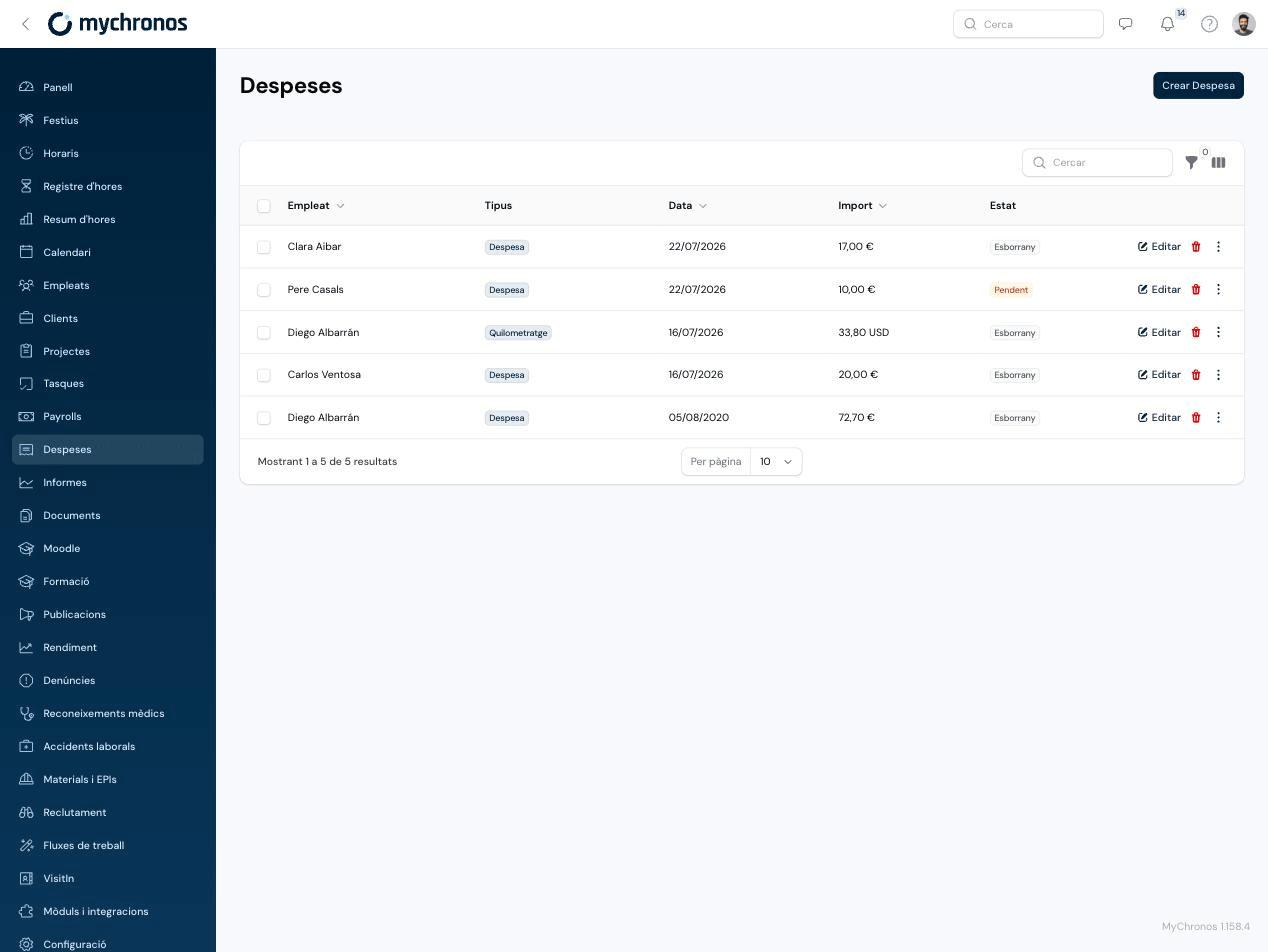
Employees can request reimbursement for expenses — general receipts, mileage, or per diems — from the mobile app, and administrators manage, approve, and prepare these requests for payment from /panel/expenses.
Separately contracted module
Expenses isn't included by default in every MyChronos plan: it's an add-on module that must be contracted separately. Contact MyChronos sales or support to activate it on your account.
Expense types
Every request is one of three types:
- Expense — A general expense with an amount and, optionally, an attached receipt or invoice (restaurant bills, supplies, and so on).
- Mileage — A trip made with a personal vehicle. The amount is calculated automatically from the distance and a rate per kilometer or mile.
- Per diem — One or more trip items (hotel night, lunch, dinner...) with predefined fixed rates, for a date range.
Creating an expense request
From the admin panel
Open Expenses
Go to /panel/expenses and click Create Expense.
Choose the type and the employee
Select Expense, Mileage, or Per diem, and the employee the request belongs to.
Fill in the details for the chosen type
-
Expense — Category, date, receipt/invoice upload, vendor, document type (Invoice, Receipt, or Credit note), document number, description, amount, and currency (EUR, USD, or GBP).
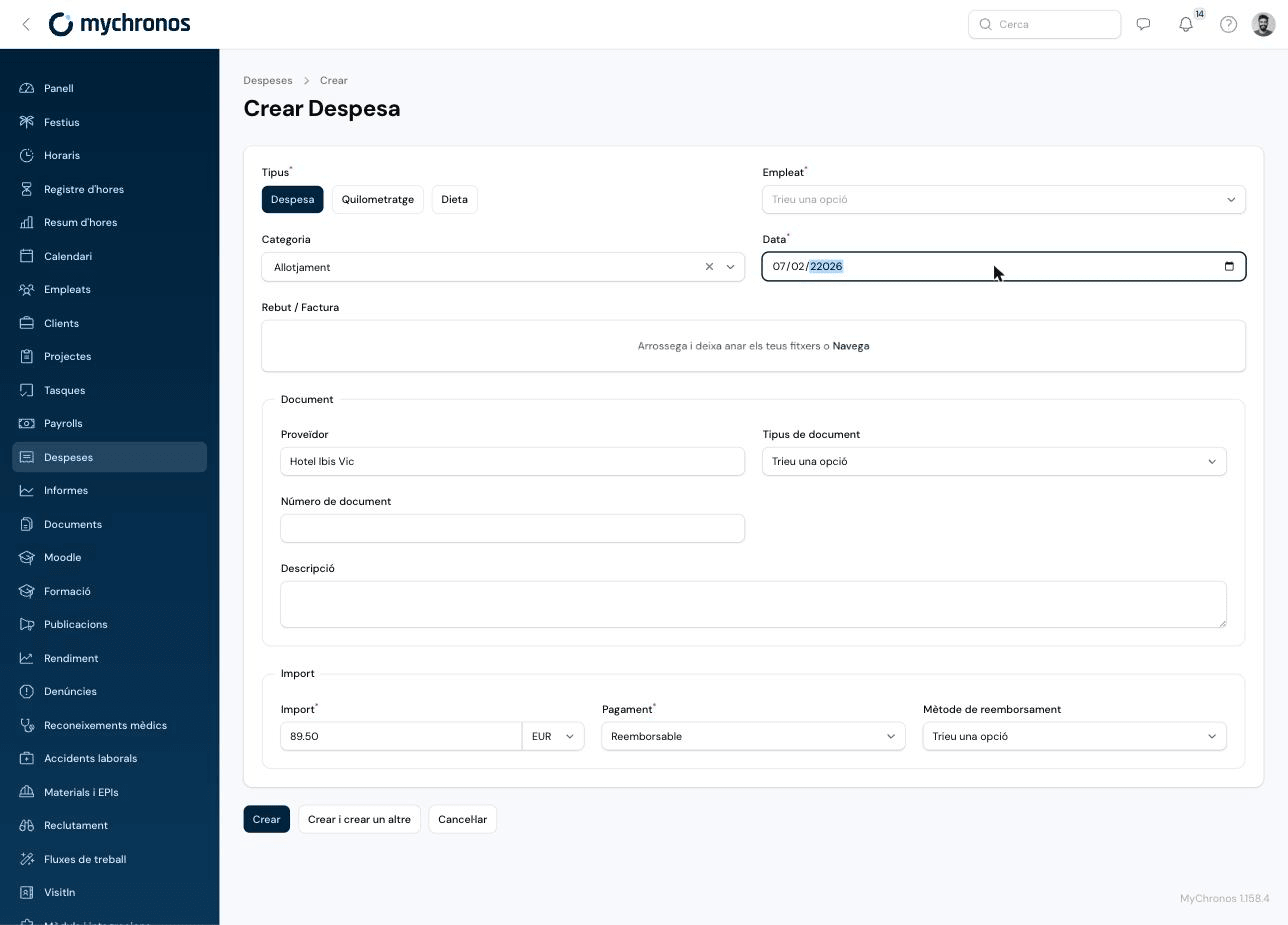
Creating a general expense -
Mileage — Distance, units (km or miles), the configured rate, origin, destination, and whether it's a round trip. The amount is calculated automatically.
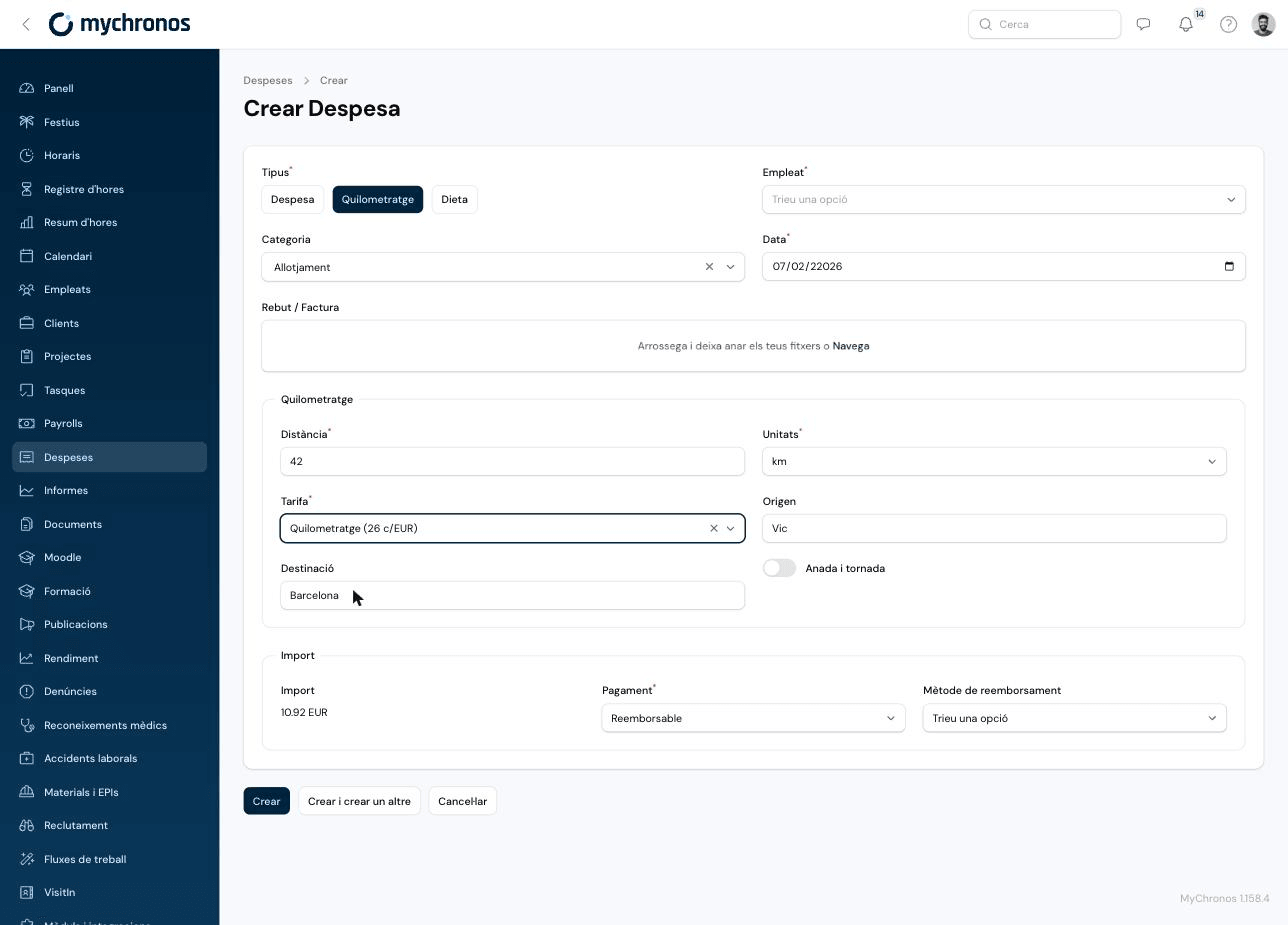
Creating a mileage request -
Per diem — Start and end date, origin, destination, trip name, and one or more rate lines (each with its own quantity). The amount is calculated automatically by adding up all the lines.
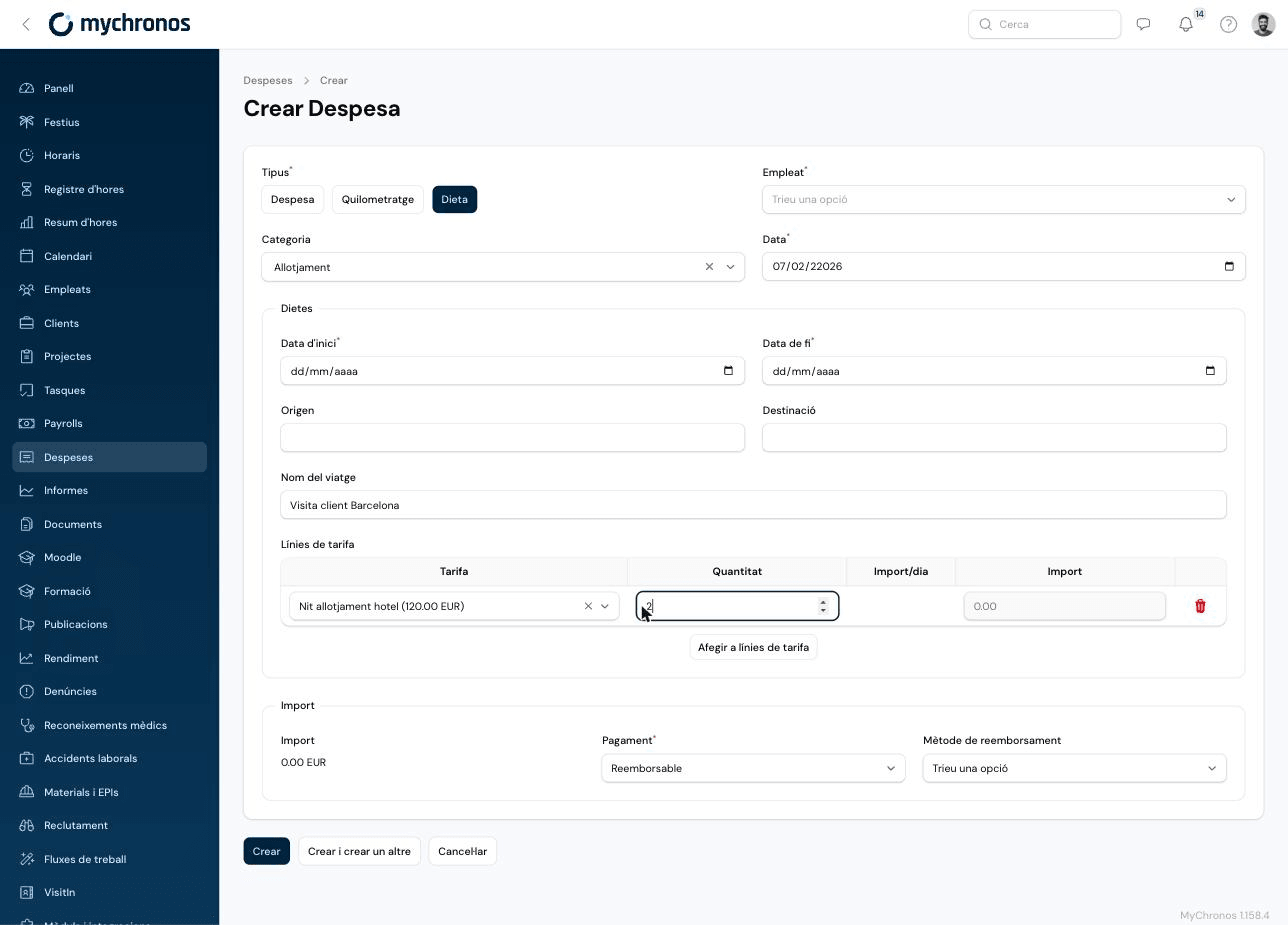
Creating a per diem request
Set the payment details
Mark the expense as Reimbursable or Not reimbursable, and optionally choose a Reimbursement method: SEPA transfer or Payroll.
Employees can also submit their own requests
From the mobile app, under Expense requests, employees can create their own requests with a simplified form (no employee or reimbursement method fields) and check them by status: Pending, Approved, or Rejected.
Categories and rates
Expense categories
Every general expense can be classified under a category — for example, Food and dining, Office supplies, Lodging, or Transport and mobility. Categories are fully configurable under /panel/expense-categories.
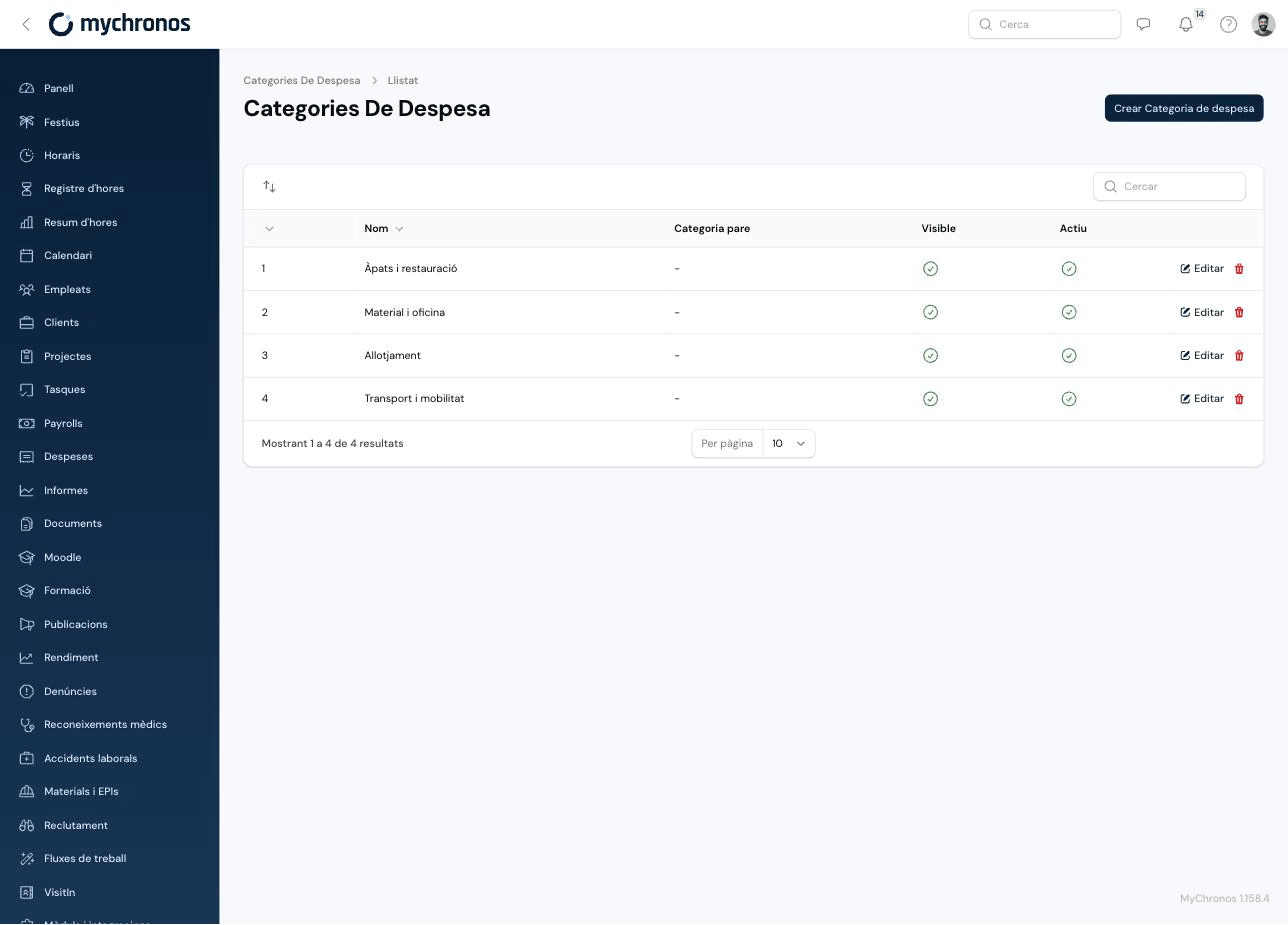
Create a category
Go to Expense Categories and click Create Expense Category.
Enter the name in each language
The language selector in the top-right corner of the form (català / espanyol) lets you enter a different name for each language your organization works in.
Assign a parent category (optional)
Select another category as the Parent category to turn this one into a subcategory, organizing categories hierarchically.
Control its visibility
Use Visible to show or hide the category in the selector when creating an expense, and Active to enable or disable it entirely.
Mileage and per diem rates
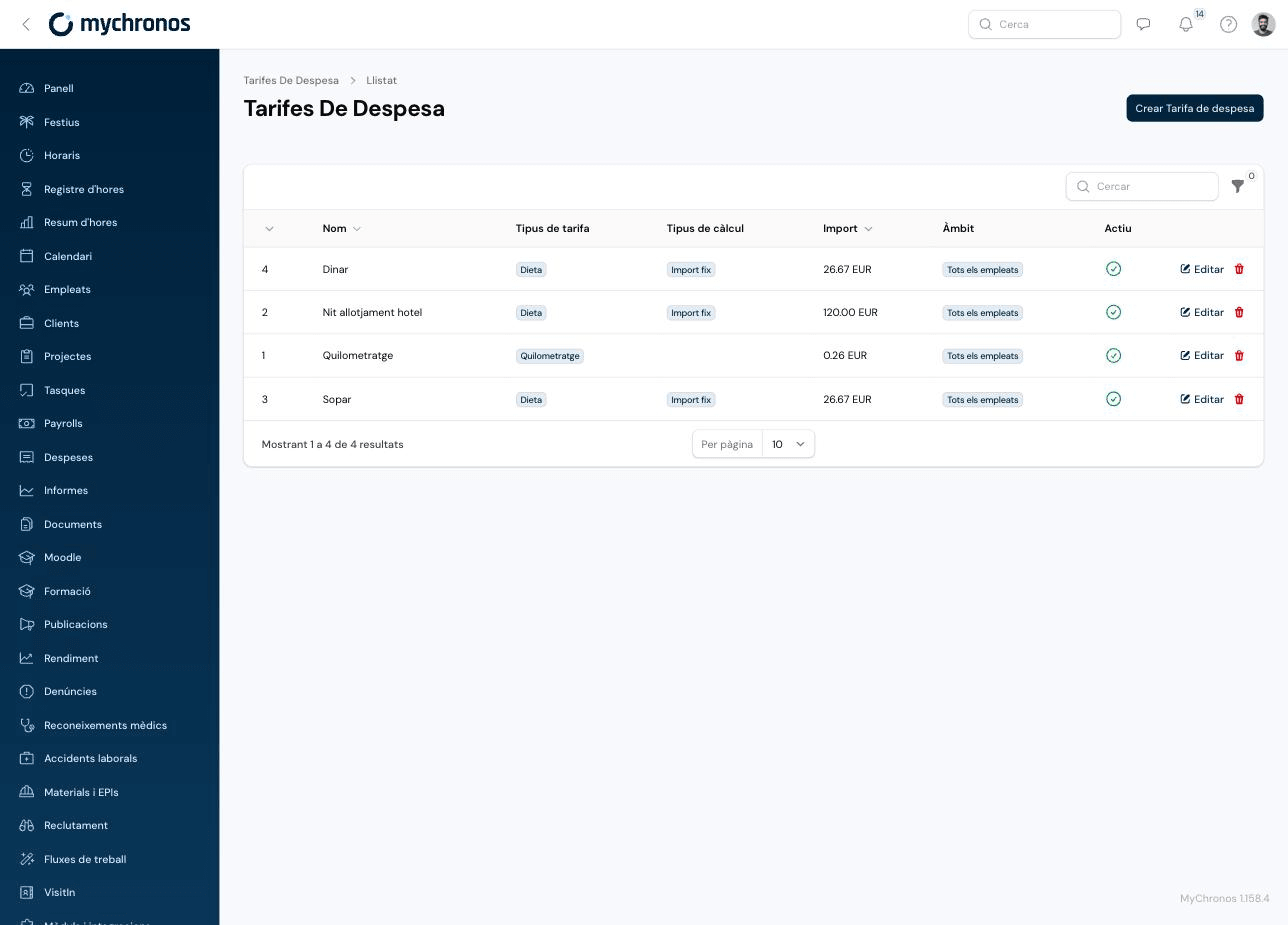
The rates offered when creating a Mileage or Per diem expense are managed under /panel/expense-rates.
Create a rate
Go to Expense Rates and click Create Expense Rate.
Set the type and the amount
Choose the Rate type (Per diem or Mileage) and the Amount (with its currency). For mileage, the amount applies per kilometer or mile traveled; for per diem, it's a fixed amount per unit (for example, per night or per meal).
Choose the scope
Apply the rate to All employees, a Manual assignment of specific employees, or an Employee group.
Request statuses
Every request moves through the following statuses:
- Draft
- Pending
- Approved
- Rejected
- Paid
- Reversed
An administrator can manually change the status from the three-dot menu on any row (Change status), or let it advance automatically according to the configured approval flow. See Approval Flows to configure who approves each request and in what order.
Approving pending requests
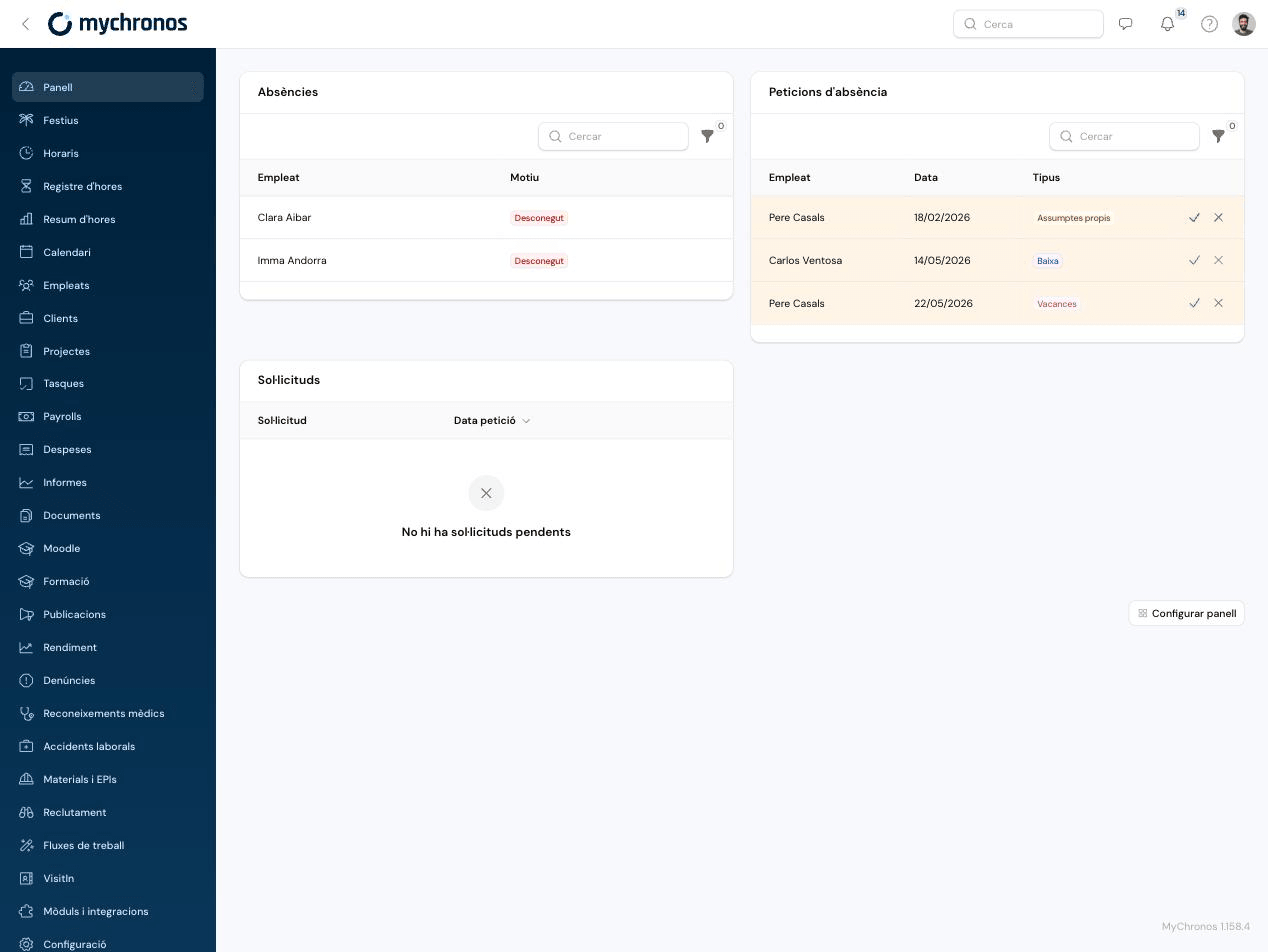
Requests with an active approval flow appear in the Requests block on the /panel for the relevant approvers, alongside requests from other modules (such as hours or schedule change requests).
Related pages
Payroll Rules
Automate adjustments to each employee's daily hour-type totals (minimums, maximums, additions, multiplications, moves between types...) based on conditions, before they're consolidated into the payroll.
Approval Flows
Configure multi-level approval processes for expense, hours, and schedule change requests.