Approval Flows
Configure multi-level approval processes for expense, hours, and schedule change requests.
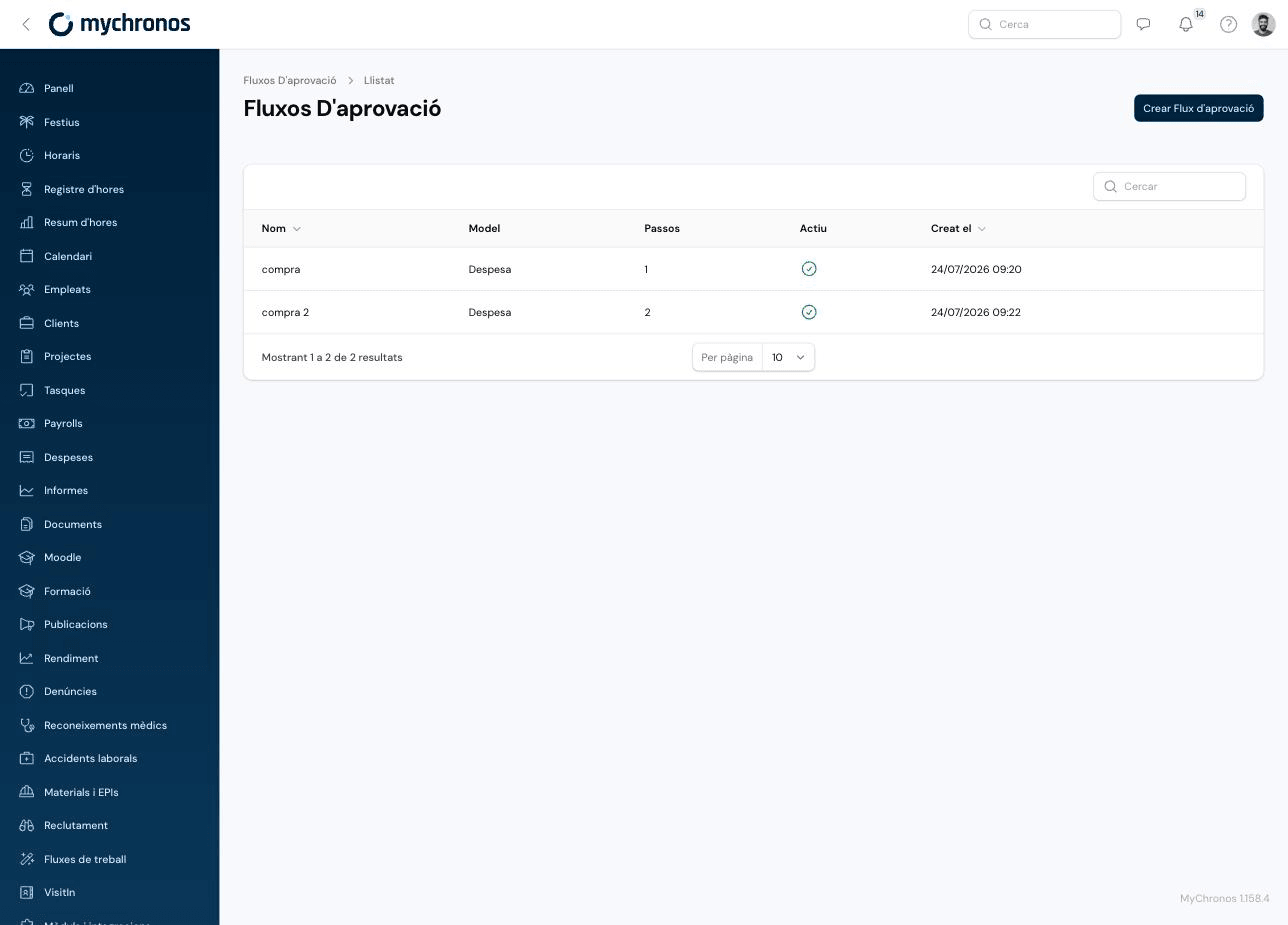
An approval flow defines who must approve a request before it's confirmed, and in what order. It can be applied to expense requests, hours requests, and schedule change requests.
Go to /panel/approval-flows to manage them.
Different from absence approval
Absence requests use their own simple approval mechanism (direct manager only, or all managers), configured within each employee's Absence Policy. The approval flows described here apply to other request types.
Creating an approval flow
Name the flow and choose what it applies to
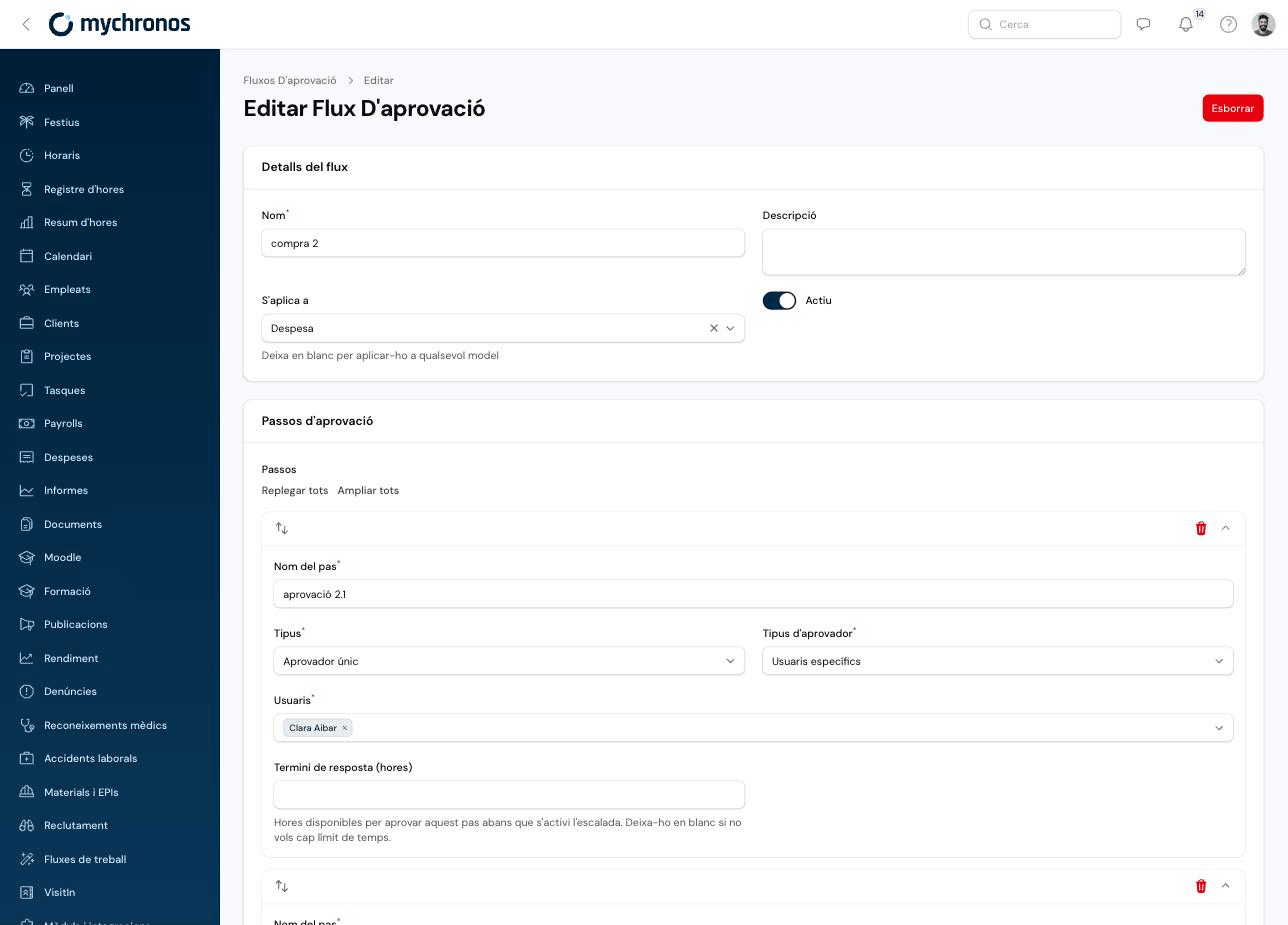
Enter a Name and, optionally, a Description. Under Applies to, choose the model this flow applies to: Expense, Hours request, or Schedule change request. Leave it blank to apply the flow to any supported model.
To assign this flow to hour requests, you still need to link it to the corresponding hour type by enabling Requires employee request on it.
Activate it
The Active switch determines whether the flow is currently in use. You can disable it temporarily without deleting it.
Add one or more approval steps
Click Add a step for each approval level you need. Steps run in the order they appear — drag the handle on the left to reorder them.
Configuring each step
Every step has the following fields:
- Step name — An identifying name, e.g. "Manager approval".
- Type — How the approval is resolved when there are multiple possible approvers: Single approver, Sequential, or Parallel.
- Approver type — Who can approve this step:
- Specific users — Directly select one or more users.
- Users by role — Any user assigned a specific role.
- Group managers — The managers of the employee group the requesting employee belongs to.
- Users — The specific users or roles, depending on the chosen Approver type.
- Response deadline (hours) — Hours available to approve this step before escalation activates. Leave blank if you don't want any time limit.
Example: two-level approval
A flow with two sequential steps — for example, "manager approval" followed by "finance approval" — requires both to approve, in that order, before the request moves to Approved. If the first step rejects the request, it doesn't move on to the second.
Where approvers see pending requests
Requests waiting on the logged-in user's approval appear in the Requests block on the Panel. See Expenses to see how approval flows apply to expense requests.