Materials and PPE
Manage the catalog of materials and protective equipment, track stock per warehouse, and process employees' material requests.
Optional module
Materials and PPE is an optional module, available if your account has billing enabled. If you don't see it in the menu, enable it from Modules and integrations.
Materials and PPE lets you track the materials and personal protective equipment (PPE) you hand out to employees: keep a catalog with variants (sizes, colors...), track how much stock is left in each warehouse, log inbound and outbound movements, and let employees request what they need from the app.
Go to /panel/personal-protective-equipment/materials to manage it. The module has six sections accessible from the top menu: Material requests, Materials, Movements, Stock, Warehouses, and Settings.
Materials
The catalog of materials and PPE. Each material has a Name, an optional internal Code, an Image, and can be organized into Categories.
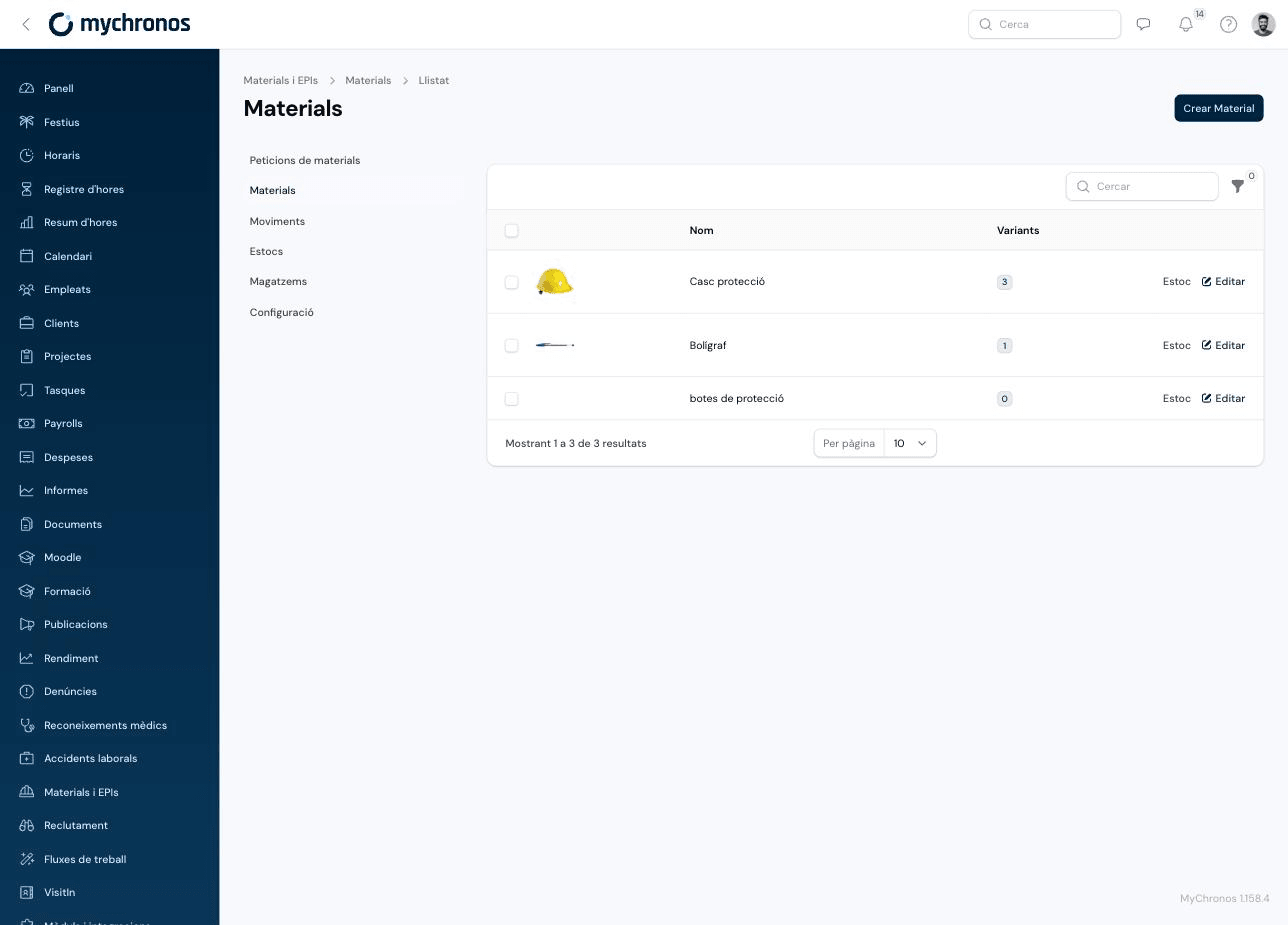
Two toggles control its behavior:
- Selectable in material requests — If disabled, employees won't be able to choose this material when creating a request from the app (for example, for materials only an administrator manages manually).
- Requires signature after delivery — Flags materials for which you want a record that the employee confirmed receiving them (typical for PPE). This flag can be used as a condition inside a workflow (Workflows in the main menu) triggered when a request is finished.
Variants
If a material comes in several sizes, colors, or other variations, enable With variants and define the Attributes (for example, "Size" with values S, M, L). Once saved, click Generate variants to have MyChronos automatically create every possible combination, or add them manually with Create Variant.
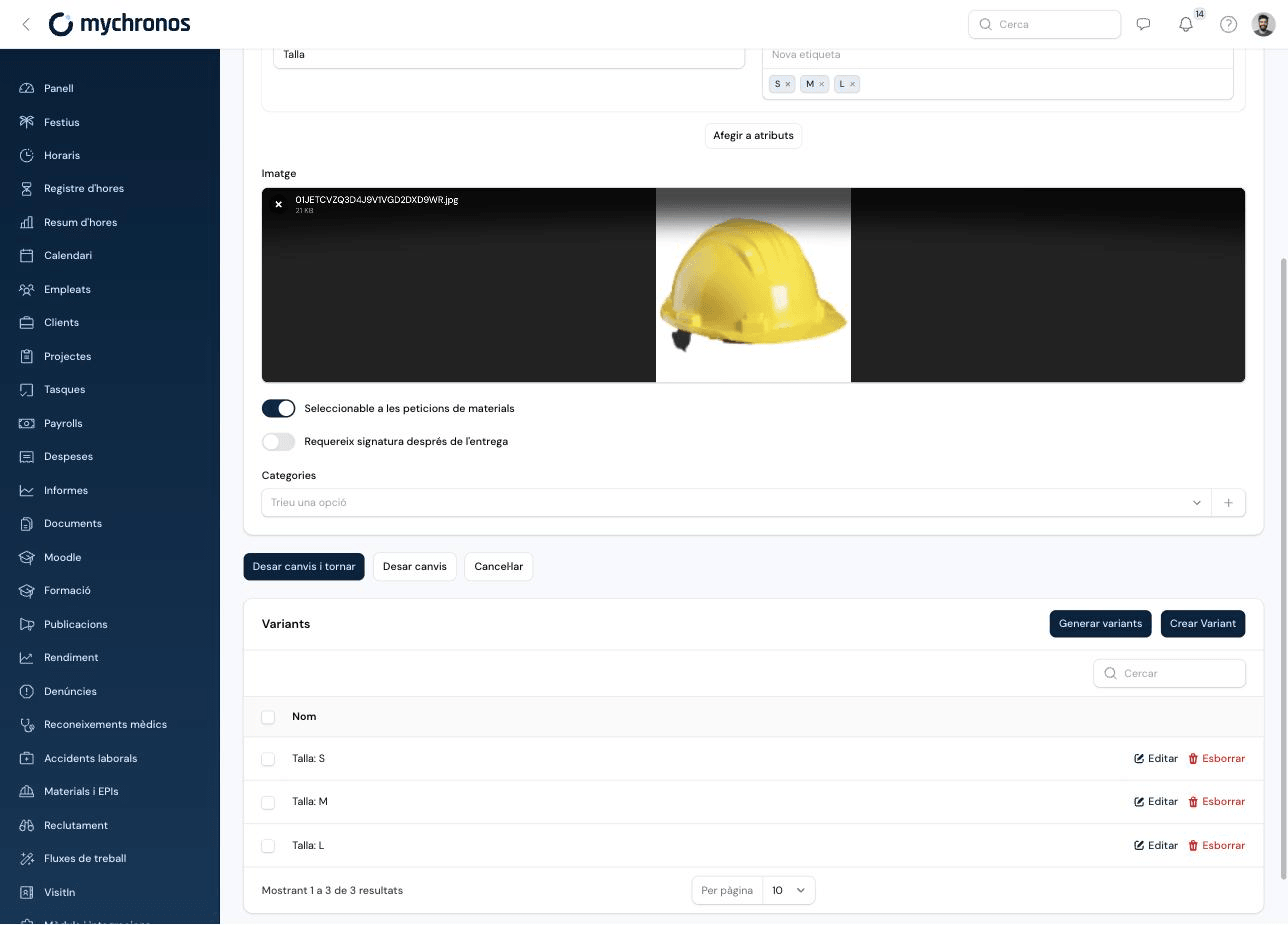
From the Materials list, the Stock button on each row goes directly to that material's filtered stock.
Material requests
Employees can request materials from the mobile app: they choose a category (optional), the material, the variant if there is one, the quantity, and a comment, and can add several lines to the same request. They'll only see materials flagged as Selectable in material requests.
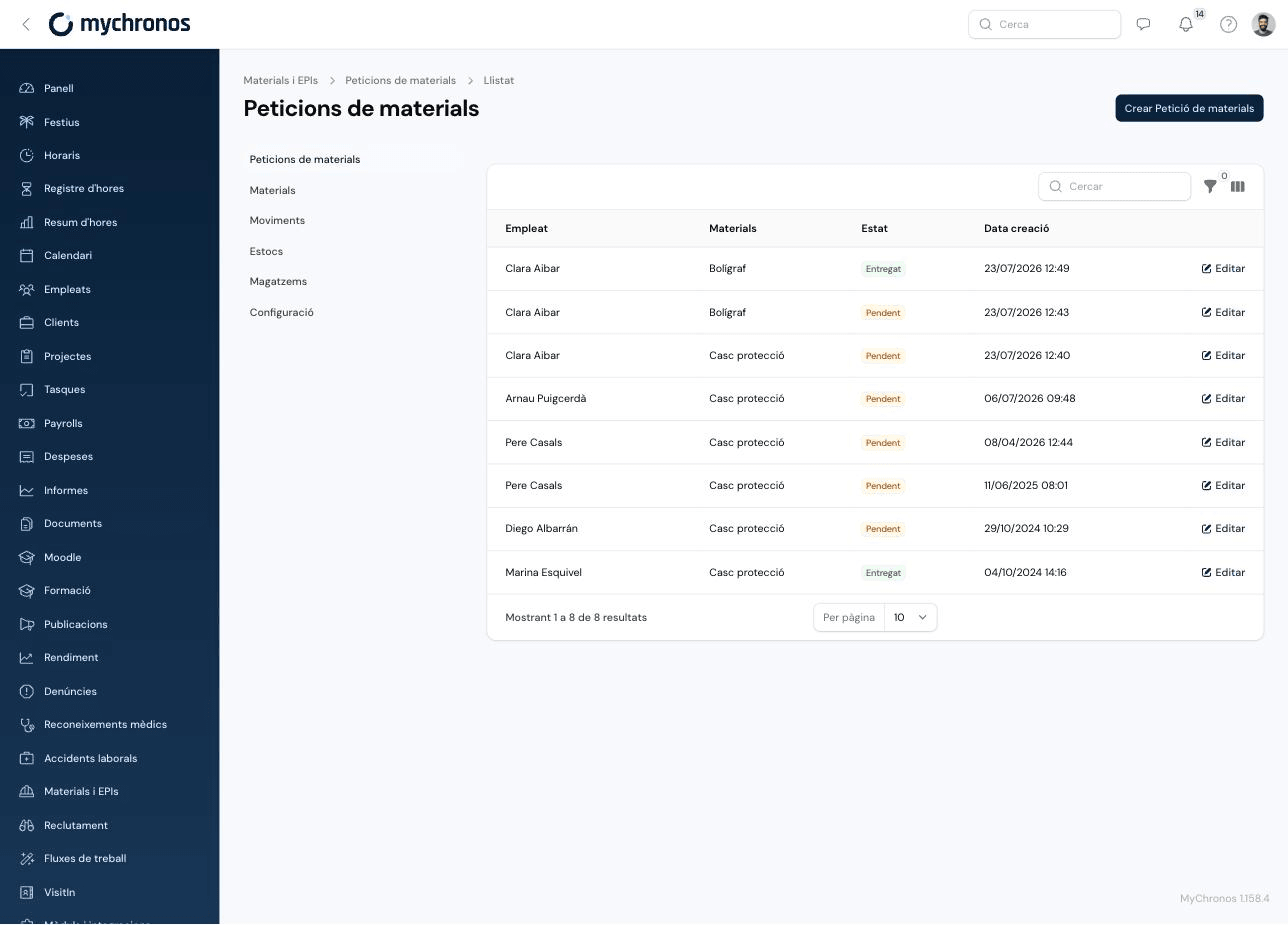
When a request is created, MyChronos notifies the configured Request managers (see Settings below) or, if none are set, every user with edit permission on the module.
Opening a request shows the Requested materials section, with each line displaying the requested quantity and the quantity already fulfilled. From here you can:
- Fulfill a specific line, entering the quantity to hand out and whether it's an Inbound (a direct stock addition, for example a new purchase) or a Transfer from a warehouse or another employee.
- Fulfill all materials, which applies the same operation to every pending line at once.
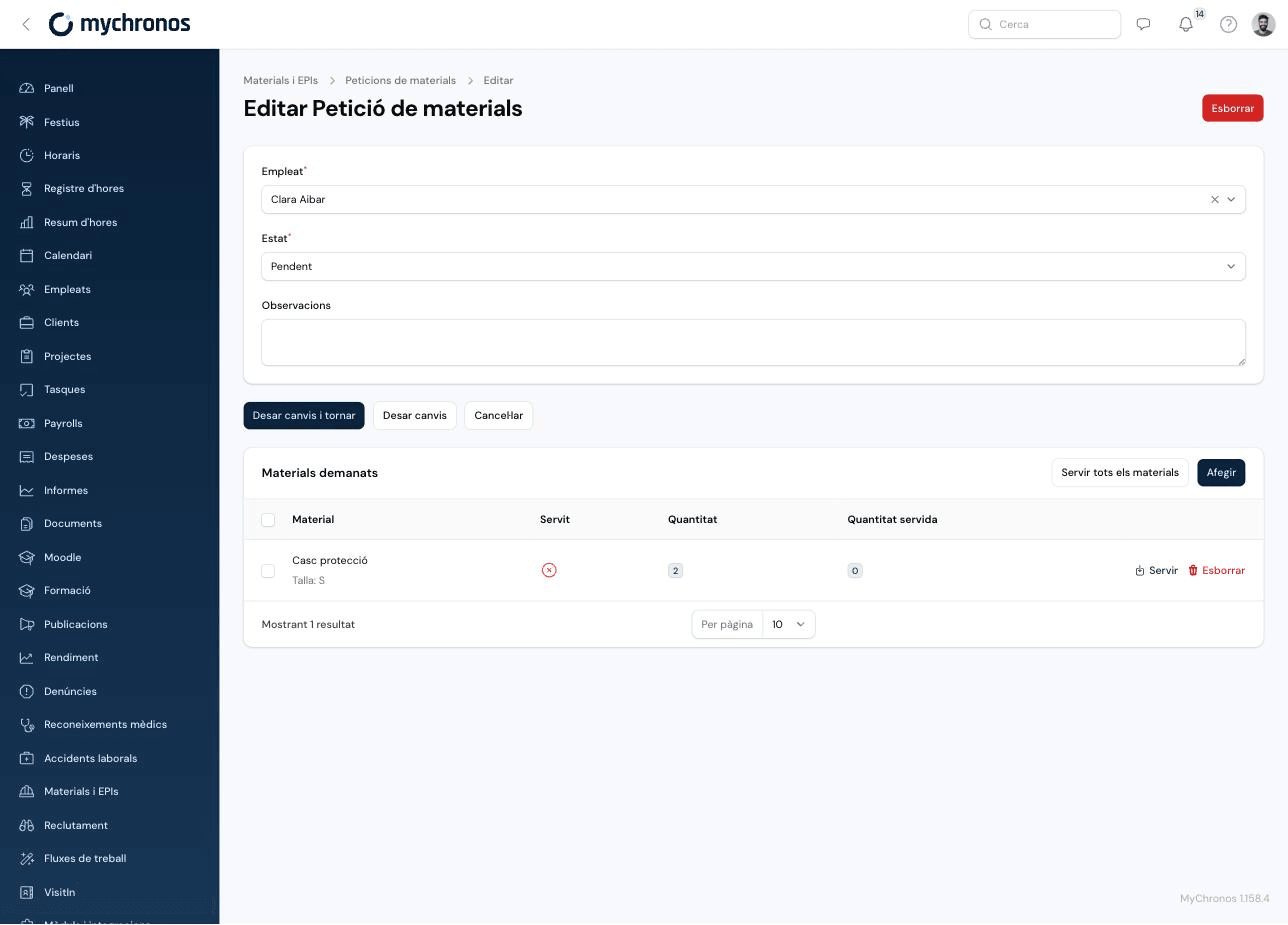
Every time you fulfill a line, the corresponding stock movement is generated automatically. Once every line on a request has been fully fulfilled, the request moves to Finished status; while any line is still pending, it stays as Pending.
Movements
A movement records any stock inbound, outbound, or transfer of a material. There are three types:
- Inbound — Adds new stock (for example, a purchase), with no origin.
- Transfer — Moves stock from an origin warehouse or employee to a destination warehouse or employee.
- Outbound — Permanently removes stock (for example, damaged material), with no destination.
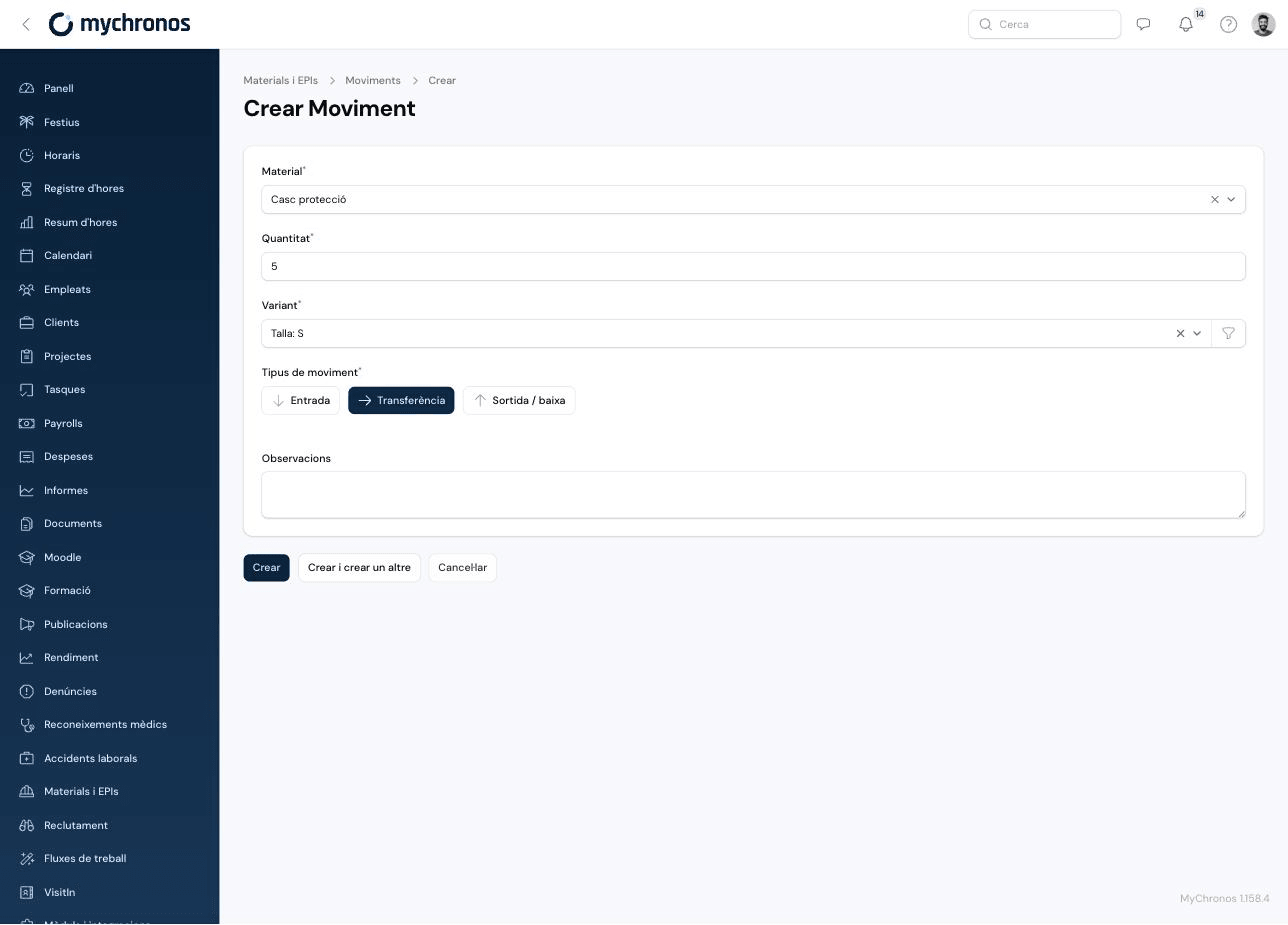
If the material has variants, you must choose one before continuing. When picking an origin with insufficient stock for the entered quantity, MyChronos disables that option so it can't be selected.
Warehouses
Warehouses represent the physical locations where you store material (for example, "Office warehouse" or "Outdoor shed"). Each employee also has an implicit personal warehouse representing the material assigned to them: it's created automatically the first time material is delivered or transferred to them.
Stock
Shows the available quantity of each material per warehouse or employee, with filters by material, warehouse, and employee. By default only combinations With stock (greater than zero) are shown; disable this filter to see everything, including materials with no units left.
Settings
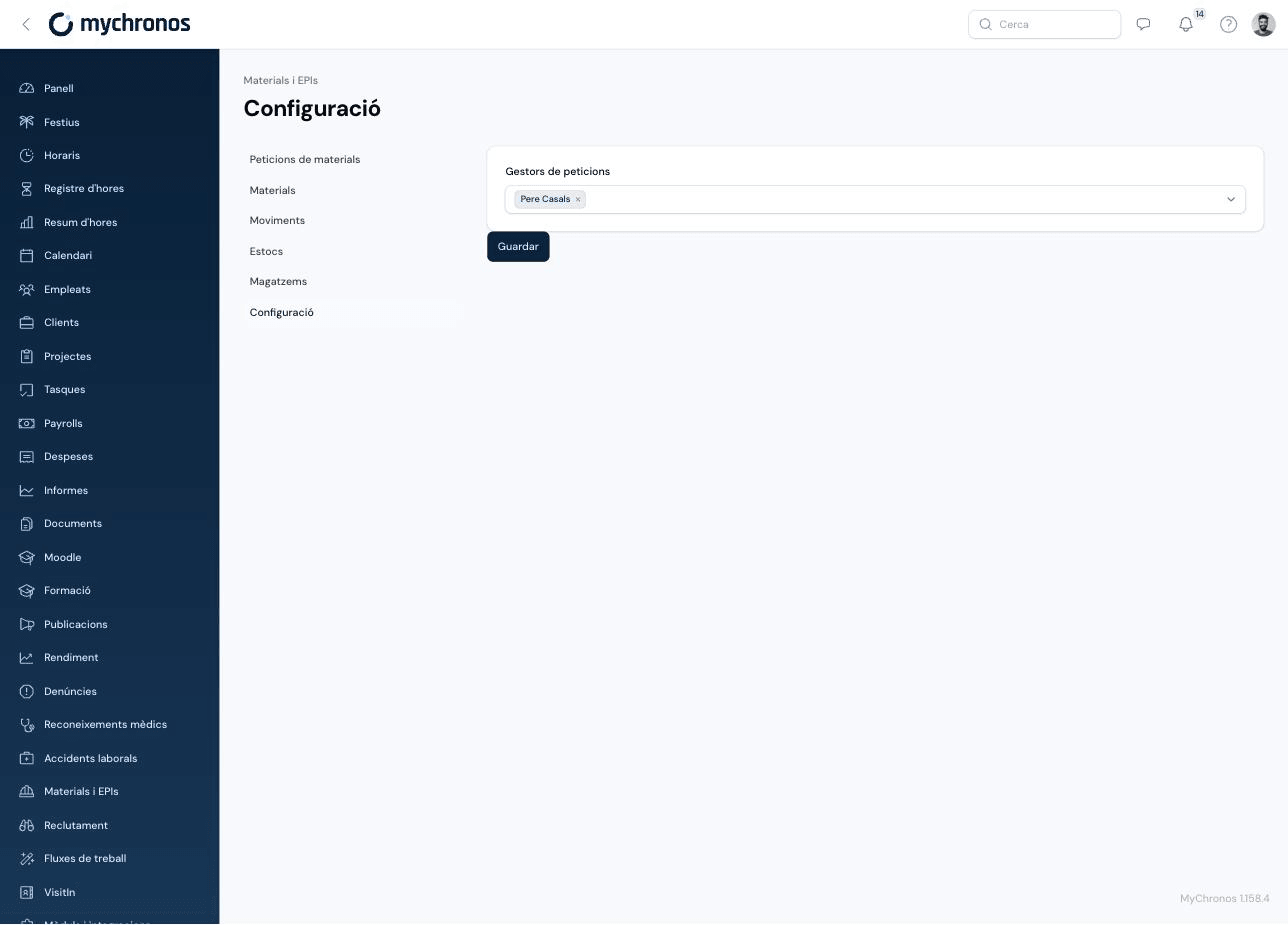
Define the Request managers: the employees who will receive a notification every time someone creates a new material request. If you don't define any, notifications go to every user with edit permission on the module.