Hour Types
Define the labels (Working Hour, Overtime, Holiday...) used to classify worked time, along with their multiplier and whether they require a prior employee request.
Hour types are the labels —Working Hour, Overtime, Holiday, etc.— that MyChronos assigns to each segment of worked time. They're used in schedules to mark which type corresponds to each shift, in Payrolls to break down payroll hours, and in Hour Compensation as the source of hours to compensate.
Go to /panel/hour-types to manage them.
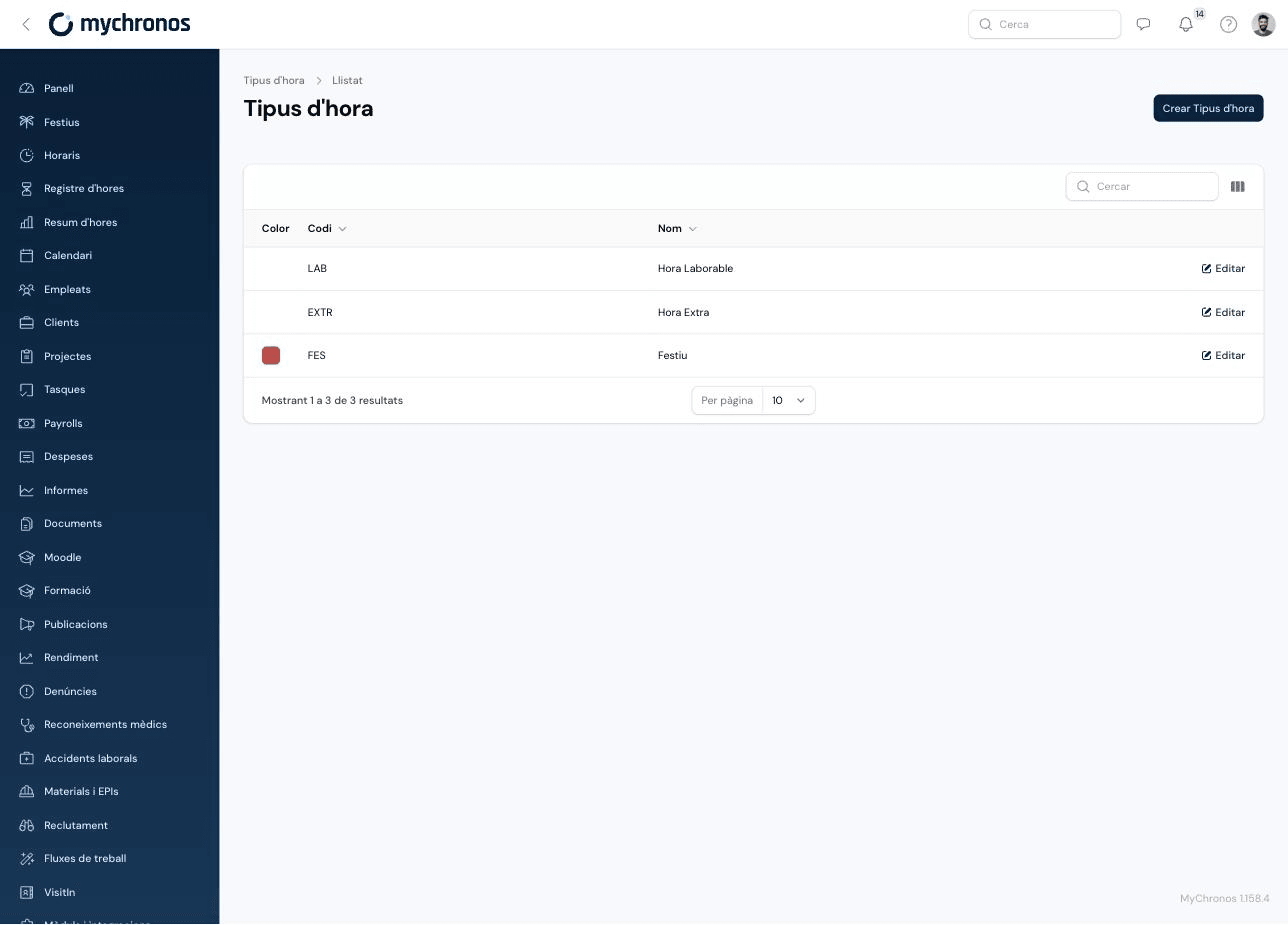
Creating an hour type
Click Create Hour Type.
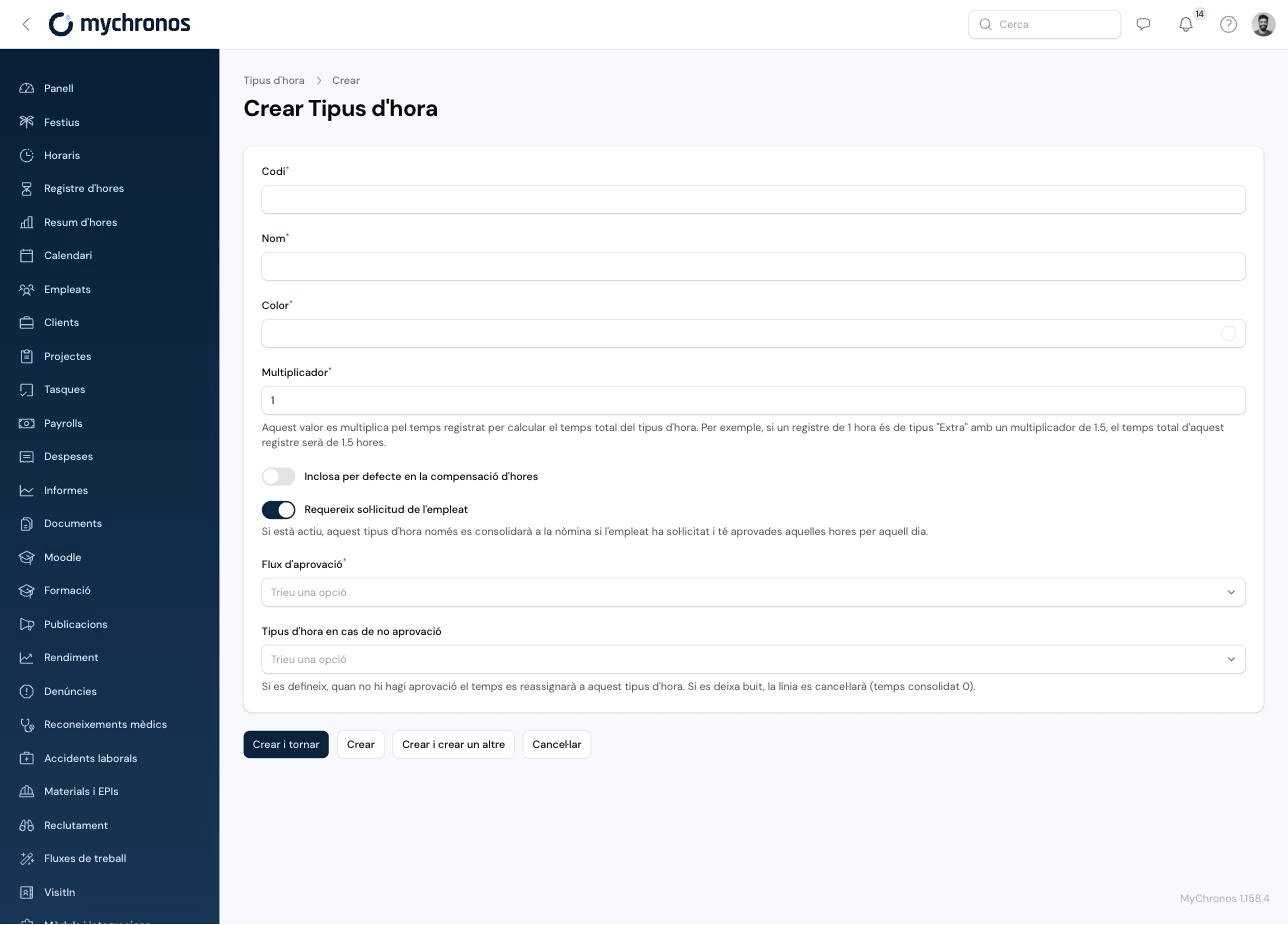
Code, name, and color
The Code is a short identifier (letters, numbers, hyphens, and underscores only) used internally and in exports. The Name is the label shown throughout the rest of the application. The Color is used to visually distinguish the type in calendars and tables.
Set the multiplier
The Multiplier determines what the registered time for this type is multiplied by when calculating its total. It defaults to 1. For example, if a 1-hour record is of type "Overtime" with a multiplier of 1.5, the total time for that record will be 1.5 hours — useful for overtime or night hours that should count for more than the actual time worked.
Choose whether it's included by default in Hour Compensation
Enable Included by default in hours compensation if you want this type to be preselected in the hour type filter when creating a new Hour Compensation with the "Payrolls" source. You can still add or remove types manually on each compensation; this only sets the initial selection.
Decide whether it requires an employee request
Enable Requires employee request if you want this hour type to only be consolidated into payroll once the employee has explicitly requested it and had those hours approved for that specific day. Turning it on reveals two additional fields:
- Approval flow (required) — The approval flow that must approve each request of this type before it's consolidated.
- Hour type when not approved (optional) — If set, when a line fails to get approval, the time is reassigned to this other type instead of being lost. If left empty, the line is cancelled and its consolidated time is 0.
How hour requests work
When an hour type has Requires employee request enabled, any segment of time calculated with that type (for example, hours outside the schedule that the system would classify as "Overtime") stays pending until:
- The employee creates an Hour Request from their app, specifying the hour type, date, estimated hours and, optionally, a comment. They can only choose among hour types that have this option enabled and an approval flow assigned.
- The request goes through the approval flow configured on the hour type. While pending, it appears in the Requests block of the Dashboard for the relevant approvers.
- If approved, the hours are consolidated into payroll with the original hour type. If rejected or never approved, the Hour type when not approved rules apply: reassignment to another type, or cancellation (consolidated time 0).
Administrators can review all requests —pending, approved, and rejected— from the Hour Requests button at the top of Payrolls.
Adjusting hour types automatically
If you want an hour type to have a guaranteed minimum, a maximum, or receive a bonus based on conditions, see Payroll Rules.
Designed for hours that need justification
This option is useful for hour types like "Overtime", where you want the employee to explicitly confirm and justify that they worked that time before it counts toward payroll, instead of automatically accepting any excess the system detects over the schedule.